GTA 6 Controls Guide: PS5 and Xbox Default vs Classic Button Layout
See GTA 6’s Default and Classic controller layouts for PS5 and Xbox. Find the buttons for running, jumping, crouching, shooting, and changing schemes.
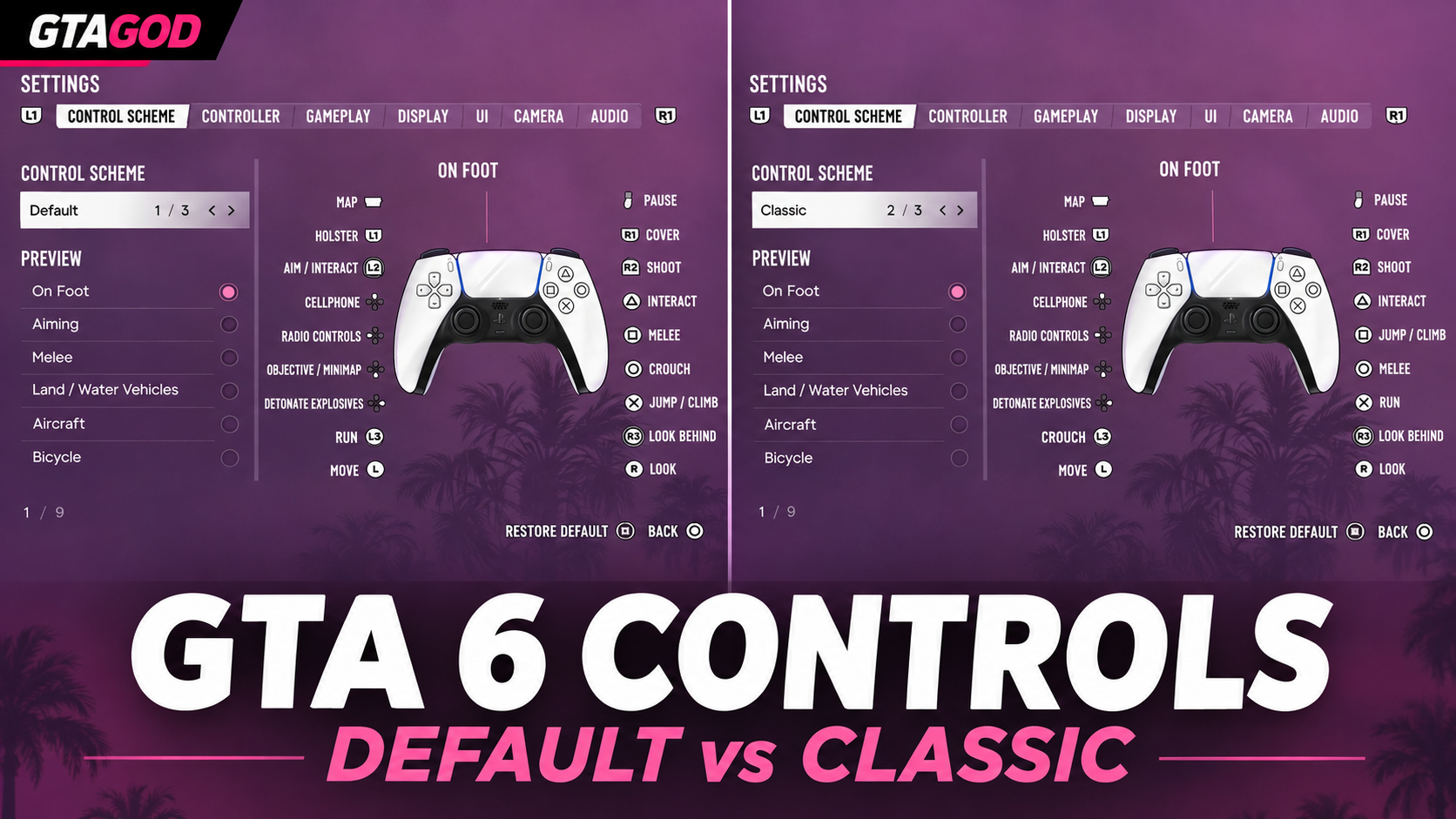
If your first few minutes in GTA 6 involve clicking the wrong button to run, check your control scheme. The game offers a Default layout and a Classic layout, and they put some of the most-used actions in very different places.
The screenshots below show the on-foot PS5 controls. Xbox button equivalents are listed underneath.
GTA 6 Default controls on PS5
The biggest change is Run on L3: press the left stick down until it clicks. That leaves Cross for jumping and climbing.
- Move: Left stick
- Run: L3
- Look: Right stick
- Look behind: R3
- Jump / climb: Cross
- Crouch: Circle
- Melee: Square
- Interact: Triangle
- Aim / interact: L2
- Shoot: R2
- Cover: R1
- Holster: L1
- Cellphone: D-pad up
- Radio controls: D-pad left
- Objective / minimap: D-pad down
- Detonate explosives: D-pad right
- Map: Touchpad
- Pause: Options
If you're used to running with a face button, L3 is probably the one that will catch you out. “L3” means clicking the left stick, not moving it forward.
GTA 6 Classic controls on PS5
Classic moves Run back to Cross. It also rearranges jump, melee, and crouch:
- Run: Cross
- Jump / climb: Square
- Melee: Circle
- Crouch: L3
The other on-foot actions shown in these screenshots—including aiming with L2, shooting with R2, interacting with Triangle, and taking cover with R1—stay in the same places.
What are the Xbox buttons?
The screenshots show a DualSense controller, but the matching Xbox face buttons are:
- PS5 Cross → Xbox A
- PS5 Circle → Xbox B
- PS5 Square → Xbox X
- PS5 Triangle → Xbox Y
- PS5 L1 / L2 → Xbox LB / LT
- PS5 R1 / R2 → Xbox RB / RT
- PS5 L3 / R3 → click the left / right stick
So for the on-foot actions above, Default puts Run on the left-stick click and Jump on A. Classic puts Run on A, Jump on X, Melee on B, and Crouch on the left-stick click.
How to change your GTA 6 control scheme
Open Settings, go to the Control Scheme tab, and switch between the available presets. The screenshots show Default as 1 of 3 and Classic as 2 of 3; the third preset isn't shown here.
Before you head back into Leonida, use the Preview list to check the controls for Aiming, Melee, Land / Water Vehicles, Aircraft, and Bicycle. The images in this guide show On Foot only, so don't assume those buttons work the same way behind the wheel.
Our pick? Give Default a few minutes. If clicking L3 to run keeps breaking your rhythm, switch to Classic and get on with the game.
More updates to come.
Source: GTAGOD

Writing GTA news and guides for GTAGOD.